

Supported exchanges
Before you connect
Prepare:- A key created directly on the exchange, limited to reading wherever possible.
- Withdrawal permission disabled.
- API secret and passphrase copied once when the exchange shows them.
- IP restrictions disabled unless you know how to allow Performax (see Troubleshooting).
- For Hyperliquid and Lighter: a browser with the wallet extension that holds the address.
Binance
Binance covers three products: Spot, Futures (USD-M) and COIN-M. When you add the account you choose which of these Performax tracks under Products to track. Spot and Futures are checked by default; COIN-M is opt-in.- Open Binance API Management.
- Create an API key, for example labelled
Performax. - Keep Enable Reading checked for Spot.
- If you track Futures (USD-M) or COIN-M, also turn on Enable Futures. Binance has no read-only futures scope. Do not enable withdrawals.
- Copy the API key and secret key. Binance shows the secret only once.
- In Performax, open Settings → Exchange → Add connection.
- Select Binance.
- Paste the API key and API secret.
- Check the products you trade: Spot, Futures (USD-M), COIN-M.
- Optionally add a label.
- Click Add.
Spot:, Futures: or COIN-M: so you know which permission to fix or which product to uncheck. If a coin was delisted from Binance spot but still trades as a perpetual (for example XMR), its Journal chart is sourced from the futures market.
OKX
- Open OKX API Management.
- Create a V5 API key yourself. Do not look for Performax in the third-party application list.
- Give the key read access only. Disable trading and withdrawal.
- Set a passphrase. It is mandatory, cannot be recovered, and is not your OKX login password.
- Copy the API key, secret key, and passphrase.
- In Performax, open Settings → Exchange → Add connection.
- Select OKX.
- Paste the API key, API secret, and passphrase.
- Optionally add a label.
- Click Add.
WEEX
- Open WEEX API Management.
- Create an API key.
- Set permissions to read-only. Disable order placement and withdrawals.
- Set a passphrase and keep it somewhere safe.
- Copy the API key, secret key, and passphrase.
- In Performax, open Settings → Exchange → Add connection.
- Select WEEX.
- Paste the API key, API secret, and passphrase.
- Optionally add a label.
- Click Add.
Hyperliquid
Hyperliquid needs no API key. Performax reads your trades from the blockchain using your wallet address.- Open Hyperliquid and connect the wallet you trade with.
- Copy your wallet address (
0x...). - In Performax, open Settings → Exchange → Add connection.
- Select Hyperliquid.
- Paste the address in Wallet address.
- Optionally add a label.
- Click Add, then sign the verification message in your wallet extension. No transaction is sent.
- In Configure HIP-3 markets, turn on Enable HIP-3 sync for this wallet if you trade HIP-3 markets, then click Activate wallet.
Lighter
Lighter uses your wallet address to identify the account and an API token to read your private trade history.- Open Lighter and connect the wallet you trade with.
- Copy your Ethereum wallet address.
- Generate an API token in Lighter.
- In Performax, open Settings → Exchange → Add connection.
- Select Lighter.
- Paste the address in Wallet address.
- Paste the token in API token (optional).
- Optionally add a label.
- Click Add, then sign the verification message in your wallet extension. No transaction is sent.
Account limits
Binance, OKX and WEEX accept one connected API key each. Hyperliquid and Lighter accept up to 3 wallets each. Under Connected exchanges, each exchange shows its slot counter (for example0/1); in the picker, a full exchange is greyed out. The same key or wallet cannot be added twice.
Your plan can also cap the number of connected exchanges. When that cap is reached, Exchange limit reached appears with an Upgrade plan button.
Account cards
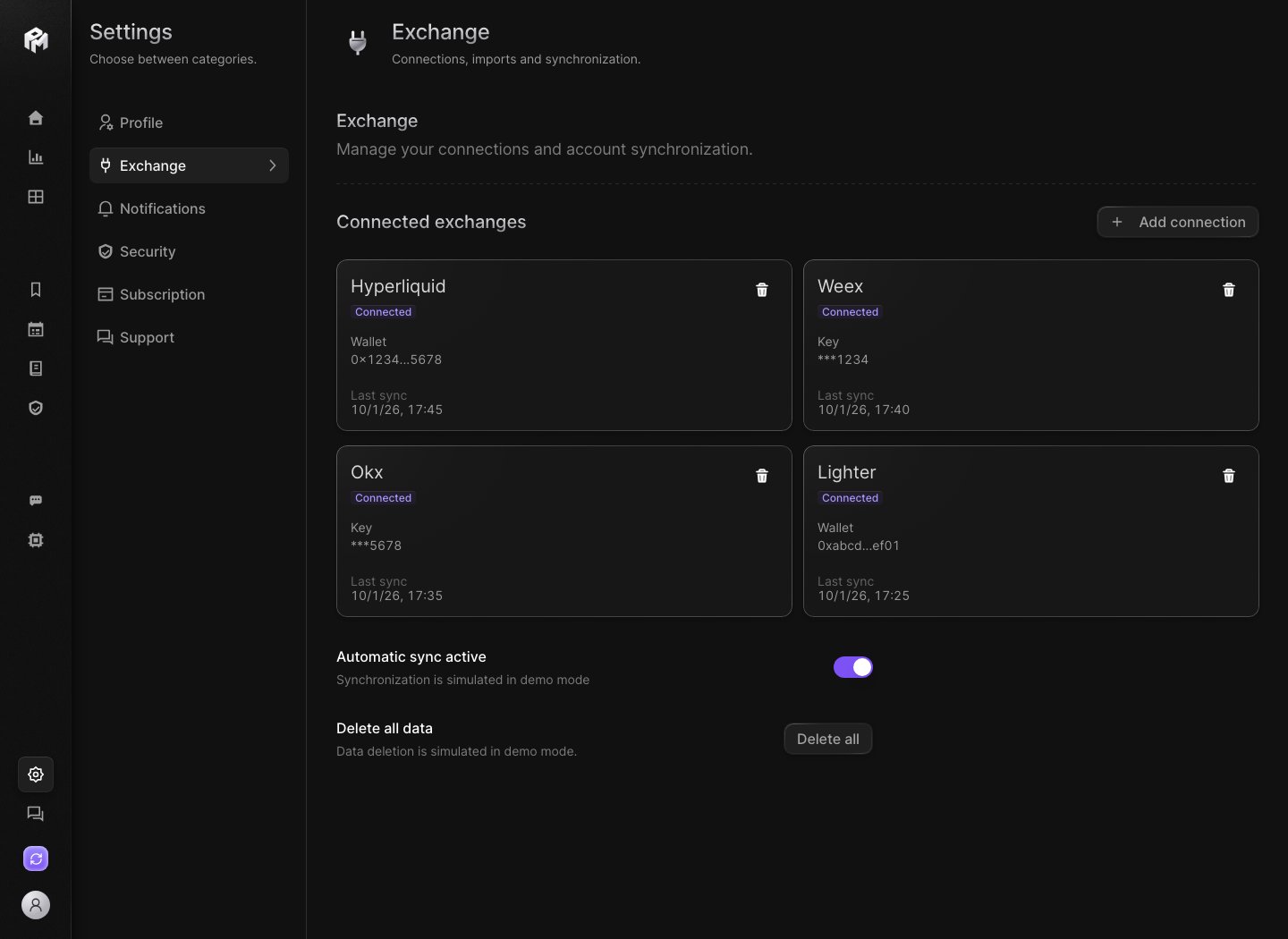
Each card shows the exchange, your label, a status (Pending, Connected, Sync error or Error), the masked key or wallet, and Last sync.- The eye icon (Hide from app / Show in app) hides an account from your views. A hidden account keeps syncing.
- The trash icon disconnects the account. Your past trades stay in your journal. If the account still has open positions, you can also mark them as closed in the journal.
- A wallet added before ownership checks existed shows Verify wallet. Verify it to keep automatic sync active.
Auto-sync
After a successful connection, the first sync imports your history, positions, balances and funding. Automatic sync then keeps your connected accounts fresh in the background.- The Automatic sync row in the Exchange tab shows whether background sync is Active or Disabled, and the last sync time. Its switch turns automatic sync on or off. The interval adapts to your recent activity: syncs run more often when you traded recently.
- The sync button in the sidebar shows Auto sync and Last sync at. It runs Sync All only when automatic sync is off.
Delete trade data
Below Automatic sync, the Delete all data row has a Delete all button that deletes all your trades and resets balances to zero. Or by exchange offers the same deletion for one exchange at a time. A Confirm deletion dialog shows what will be deleted and how many trades, before you click Delete. Connected, active accounts then re-sync their history from the exchange. Data from disconnected accounts is gone for good.Troubleshooting
Invalid key
Create a fresh read-only key. Most exchanges show the secret only once.Passphrase error
Re-enter the exact API passphrase created with the key. It is case-sensitive and is not your exchange login password.IP restriction error
Remove the IP restriction or contactsupport@performax.ai for the current allowlisting guidance.
Wallet verification fails
Open Performax in a browser where your wallet extension is installed and make sure the connected wallet is the address you entered.No trades imported
Check:- The selected account has closed trades.
- The first sync has finished.
- The date range includes the trades.
- For Lighter, the API token was added.
- The exchange API exposes that history.