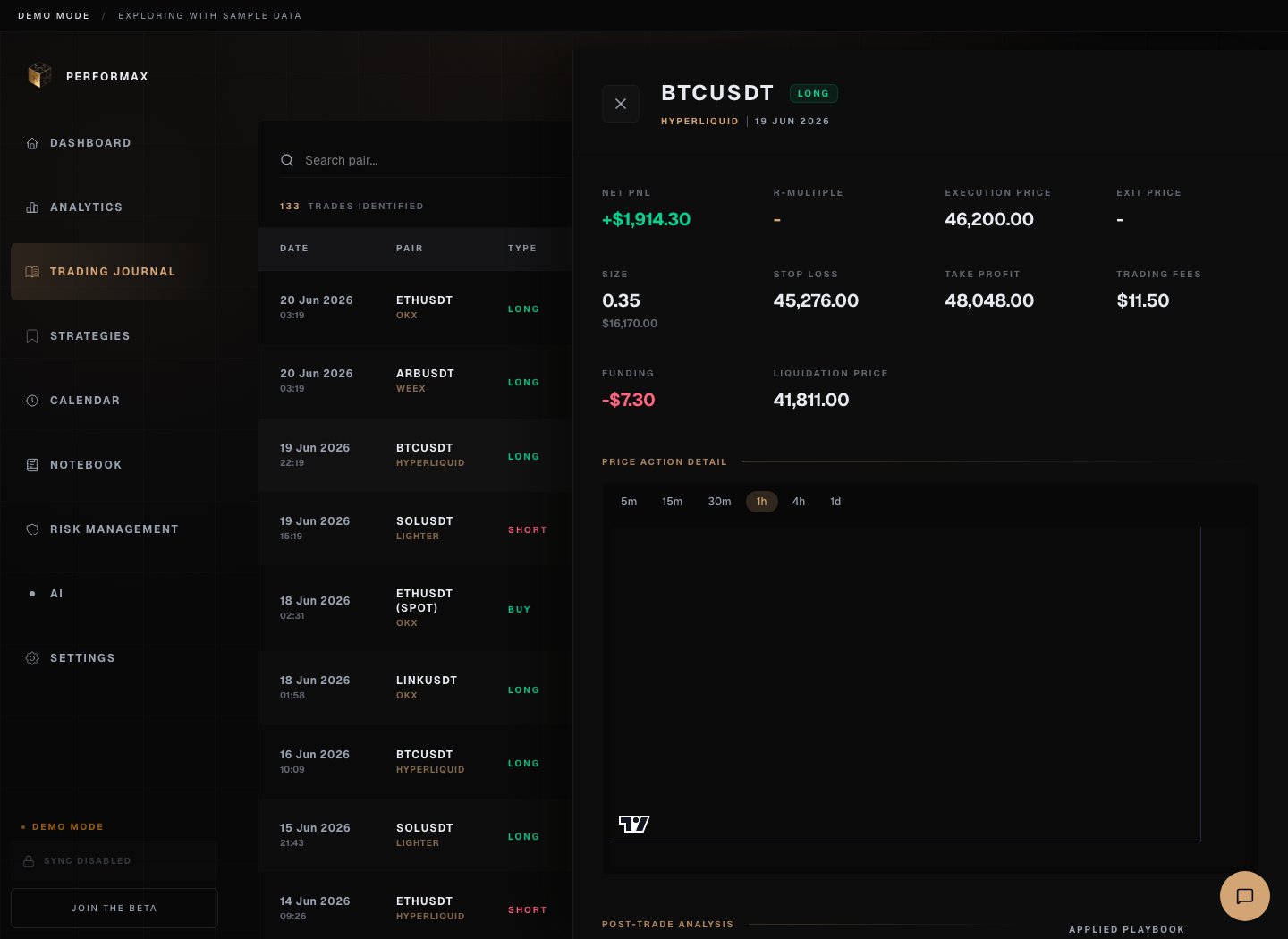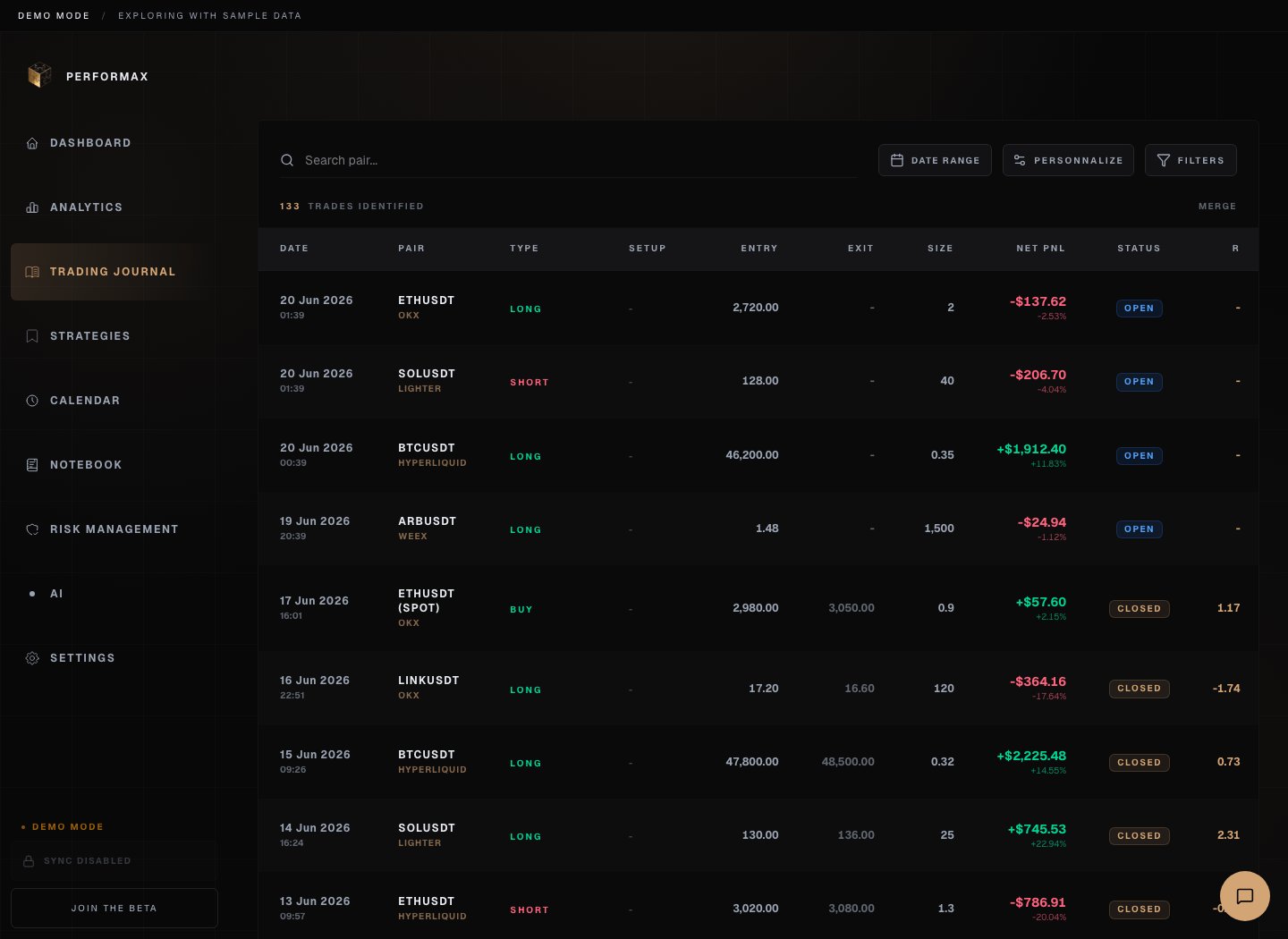
Trading Journal is the source table for imported and reviewed trades. Use it to verify raw trade data before trusting derived metrics. Performax demo trading journal showing filters, date controls, and imported trades Demo account. Compare this table with Analytics when numbers differ.

Trade list

The table can show:
  • entry and exit time;
  • symbol;
  • long or short direction;
  • entry and exit price;
  • size;
  • fees when available;
  • net P&L;
  • R-Multiple when risk data is available;
  • assigned strategy/playbook;
  • tags and notes.

Filters

Use filters to narrow review by:
  • account;
  • date range;
  • symbol;
  • direction;
  • result;
  • strategy/playbook;
  • tags or mistake tags.
If Analytics and Journal disagree, check that both pages use the same account and period.

Trade detail

Open a trade to review: Performax demo trade detail drawer showing execution summary, prices, fees, and post-trade analysis area Demo account. Use the detail drawer for execution data and review notes.
  • execution summary;
  • chart with entry and exit markers when market data is available;
  • notes;
  • tags;
  • screenshots or attachments when available;
  • linked strategy or trade plan.

Mistake tags

Mistake tags help classify repeated behavior, such as overtrading, poor entry, late exit, or rule violation. Use a tag only when it describes what happened in that trade. Apply tags consistently across many trades.

CSV export

CSV export uses the current filters. Performax demo Journal on mobile showing search, range controls, filters, and the compact trade list Mobile demo. Filters stay above the trade list. Before exporting:
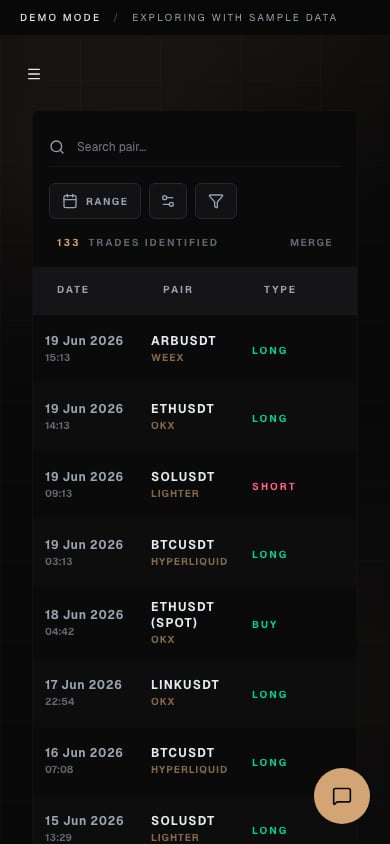
  1. Set the account and period.
  2. Apply any symbol, strategy, or result filter.
  3. Confirm the table contains the expected trades.
  4. Click Export CSV.
Expected result: the downloaded CSV matches the visible filtered scope.

Delete or edit behavior

Deleting or editing imported trades can affect metrics. Prefer correcting the source account or resyncing when the imported data is wrong. If the app exposes manual edits, record why the edit was made in notes.