

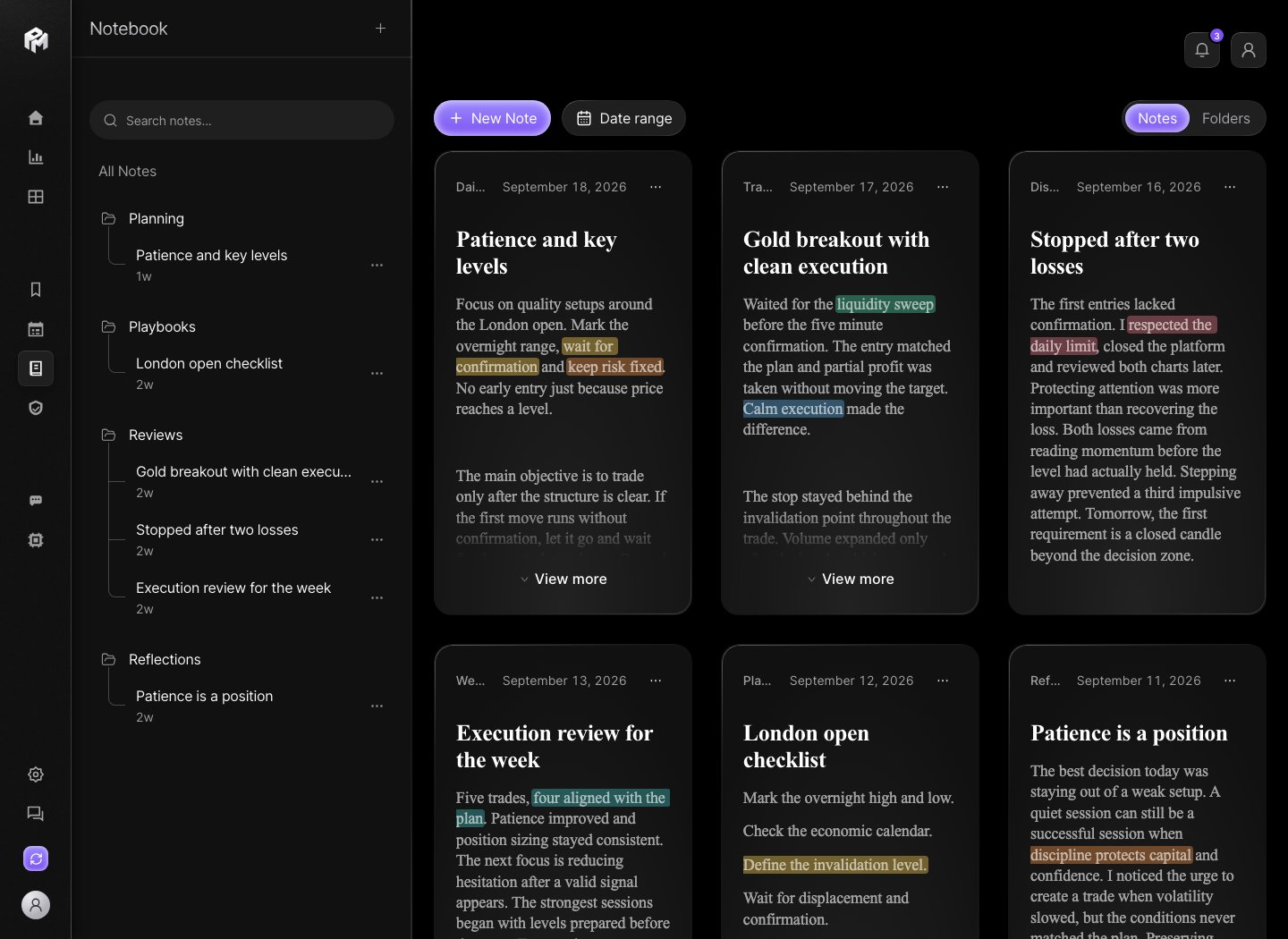
Folders
New accounts start with no folders. Create one from the + menu with Create Folder: pick one of 6 colors and a name (30 characters max). Rename or delete a folder from its menu; deleting a folder keeps its notes at the notebook root, under Unsorted notes. Folder ideas:- strategies;
- market reviews;
- psychology;
- mistakes;
- weekly reviews;
- screenshots.
Notes
Create a note with New Note or Create File. The editor supports headings, bulleted, numbered and to-do lists, quotes, code blocks, dividers, links, text color and highlight. Type/ for the block menu. Tables are not supported. Document outline lists your headings so you can jump between sections.
Notes do not save automatically. Click Save and wait for Saved before closing the tab; if you leave with unsaved changes, Performax asks Discard your changes?. A notebook holds up to 500 notes of up to 100,000 characters each.
From a note’s menu you can Pin it, Move to folder or delete it.
Daily entries
Write a review note on each trading day. The day panel in Calendar lists, under Notes, the notes created that day and opens them in the Notebook. Good daily entries include:- market context;
- trades taken;
- rules followed or broken;
- emotional state;
- lesson for next session.
Images
Use Insert picture, or paste an image, for charts, setups or mistakes that are easier to review visually. Each note holds up to 3 images. Do not upload screenshots containing API keys, account email, or unrestricted account balances unless you intentionally want them stored.Search and pinning
Search notes… matches note titles, note text and folder names. Pinned notes appear under Pinned, and the date picker filters notes by last modification. Use short, consistent words in titles, such astilt, late entry, news or breakout, so search finds repeated patterns.