

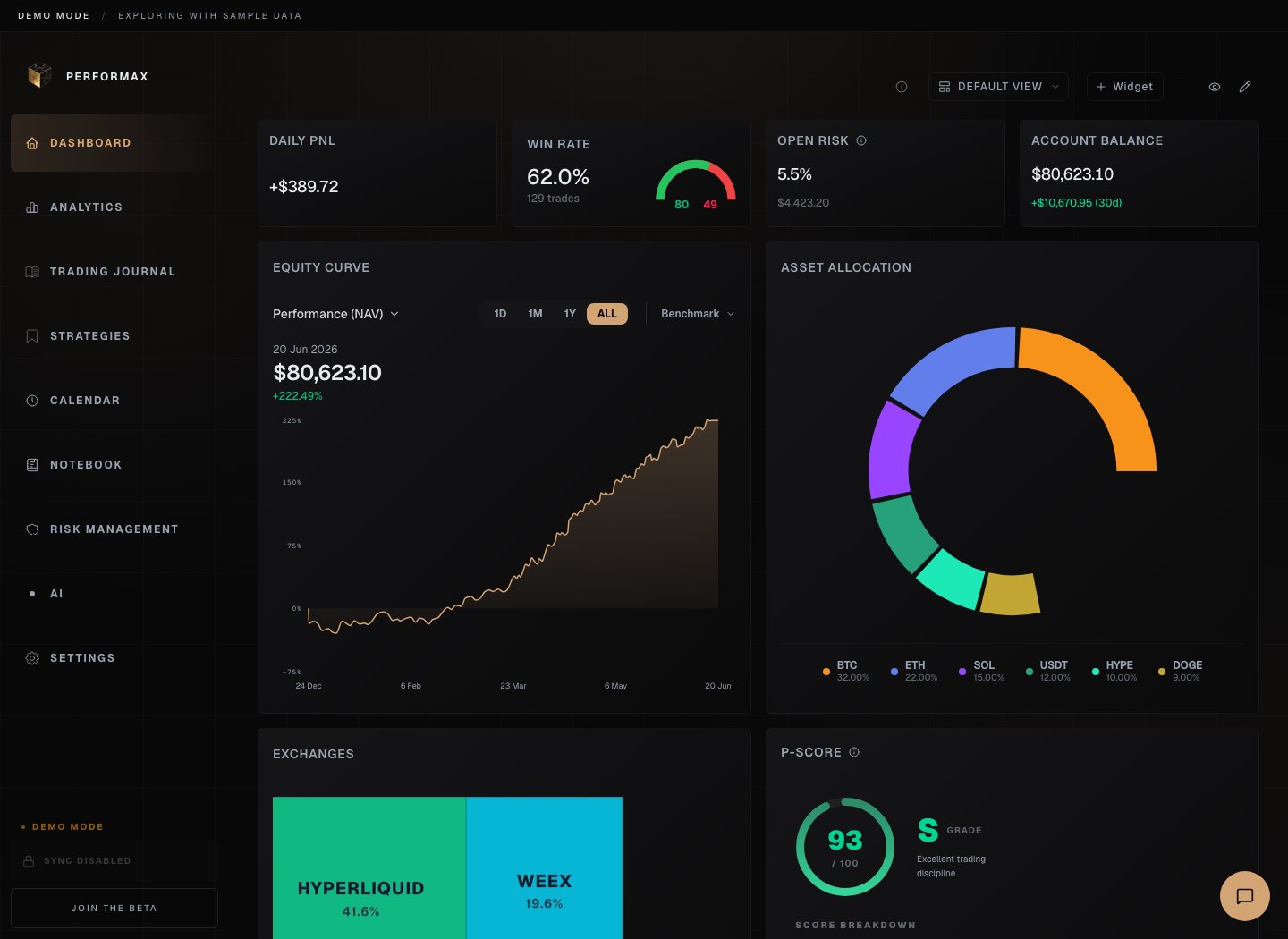
Before reading widgets
Check:- selected account scope;
- base currency;
- first sync status;
- whether balances and cashflows are available;
- privacy mode state.
Core widgets
Curves and charts
Exposure and positions
Open-position widgets depend on each exchange’s available position endpoints.
Behavior widgets
These widgets describe your history and configured thresholds. They do not control exchange trading.
AI and Coach widgets
Daily Briefing and AI widgets summarize observed data patterns. Coach widgets show deterministic rule status based on rules you enabled. Neither widget type is a trading signal.Customization
Use edit mode to:- add widgets;
- remove widgets;
- resize widgets;
- rearrange layout.
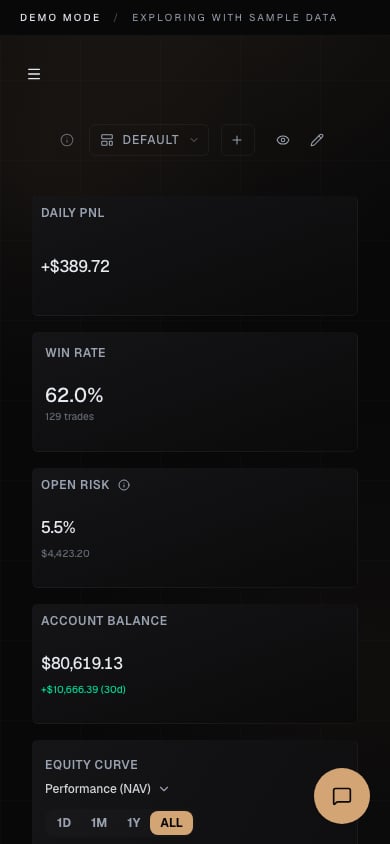
Privacy mode
Privacy mode hides sensitive monetary values for screenshots or screen sharing. It changes display only; it does not change stored data or calculations.Empty and partial states
Common causes:- no exchange connected;
- first sync still running;
- no closed trades in selected scope;
- exchange balance unavailable;
- cashflows missing;
- credentials expired.